



Resources for Staff
LSU A&M staff use Workday when completing tasks related to student advising and registration, course management and student finance and financial aid. Utilization of Workday for HCM and Financial tasks remains unchanged.
Step-by-step guides and videos to assist staff in utilizing Workday for student-related functions can be found below.
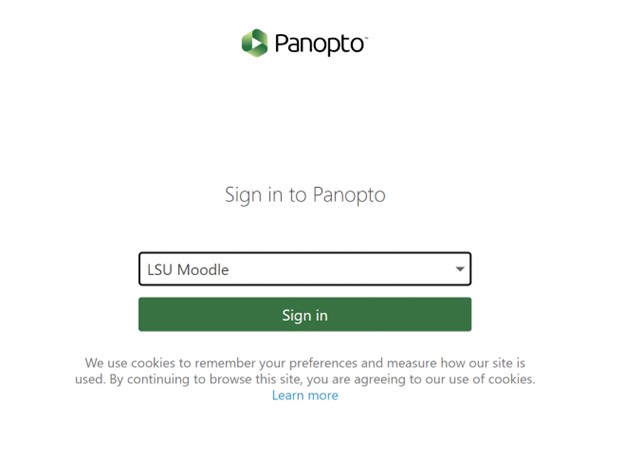
An active LSU account is required to access all resources. Video links may route to a Panopto sign in. Please select the "LSU Moodle" sign in option and use your normal LSU credentials to complete sign in.
AgCenter staff may experience issues when attempting to view video links. Please contact the College of Agriculture for assistance.
As of March 2026, users will notice a refreshed Workday homepage and menu navigation experience. Please review this guide to navigating the new interface and menu bar. Reference guides and videos below may depict the original view of the homepage, where the refresh did not impact functionality.
Please note the home page update in March 2026 may look different from guides and videos. Our team is working to update these resources as quickly as possible. Thank you for your patience!
Workday Basics
- Navigating the Workday Home Page Video
- Customizing the Menu Video
- Notifications and My Tasks Video
- Workday Icons Guide
- Customizing Workday Student Guide
Beyond the Basics
- Exploring the Search Bar Functionality Video
- Utilizing Favorites in Workday Video
- Workday Security & Roles Video
Terminology
Workday Access Review & Request
- Workday Security Access Review Guide
- Workday Security Access Request Guide
- Role Request Guidance:
- Workday Student Role Dictionary
Student Academic Records
- Understanding the Student Profile Guide
- Understanding the Academics Tab in Student Profile Guide
- Student Program of Study (Add/Change/Delete Program) Guide | Video
- Student Academic Progress Guide | Video
- Student Notes Guide
- Student Documents Guide
- Student Cohort Membership Guide | Video
- Action Items and Holds Guide
- Historical Reporting via Reports-to-Geaux Guide
Course Planning & Registration
- Student Academic Progress Guide
- Academic Plans Guide | Video (Updated 3/13/25)
- Saved Schedules for Students Guide | Video
- Courses & Course Sections Guide | Video
- Clustered Courses Video
- Registering Courses for Students (Add Drop) Guide | Video
- Student Waitlists Guide | Video
- Troubleshooting Registration Video
- Variable Credit Hour Courses Guide
- Academic Requirement Overrides & Effective Dates Guide
- Institutional Withdrawal & Leave of Absence Guide
Financial Aid & Student Financials
- SAP Appeal Process (Students) Guide
- Viewing Student Financial Information Video
- Student Payment Elections (Students) Guide
Commonly Used Tasks & Reports
Enter the following item names in the Workday Search bar to access. If no results populate in the Search bar, or the report returns no results, you do not have access to the task or report data.
- Student: First Name Last Name (Will deliver the student profile for the student)
- UID: Student's Universal ID Number (Will deliver the student profile for the student)
- Studentid: Student's Universal ID Number (Will deliver the student profile for the student)
- Find Students By Academic Criteria (Student Enrollment Report)
- Evaluate Academic Requirements for Student (Shop a Degree Audit)
- Registration Troubleshooting Console
- Find Course Sections - LSUAM (Active course section offerings)
- Find Course Sections - LSU Online (LSU Online course offerings)
- Find Student Cohorts
- Find Students with Holds By Program
- Find Academic Plan Templates (to review recommended paths for programs)
- Student Program of Study Records by Academic Unit
Administrative Support
- Courses & Course Sections Guide | Video
- Course Management Guide Coming Soon!
- Instructor Assignment Request Information Coming Soon!
- Faculty Credentialing Process Information
- View Course Section Roster as Administrator Video
- Clustered Courses Video
- Historical Reporting via Reports-to-Geaux Guide
Student Academic Support
- Navigating to a Student Quick Reference Guide
- Understanding the Student Profile Guide
- Student Course Registration Guide
Student Financials Support
- Student Financials Quick Reference Guide
- Viewing Student Financial Information Video
- Student Payment Elections (Students) Guide
Scholarship Information
- Blackbaud Award Management Disbursement Guide
Commonly Used Reports
Enter the following item names in the Workday Search bar to access. If no results populate in the Search bar, or the report returns no results, you do not have access to the task or report data.
- Student: First Name Last Name (Will deliver the student profile for the student)
- UID: Student's Universal ID Number (Will deliver the student profile for the student)
- Studentid: Student's Universal ID Number (Will deliver the student profile for the student)
- Find Course Sections - LSUAM (Active course section offerings)
- Find Course Sections - LSU Online (LSU Online active course section offerings)
- Find Courses (Course Catalog)
- Find Course Section Definitions (These reports will return term-specific course section information including course rosters using the section's related actions.)
- View Instructor Teaching Schedule
- View All Courses for Department by Academic Period (similar to legacy "VDPT")
- View All Sections of One Course by Academic Period
- Student Waitlist Information
- Registrar - Unique Waitlist Count
- Registrar - Waitlist Only Students (Students who are waitlisted for a course and are not actively enrolled in a different section of the course)
HCM & Finance Resources
Common Questions & Finding Help
You can log into workday at www.myworkday.com/lsu
If you are having issues access your Workday account, or logging into Workday, please contact the ITS Service Desk to request a service or chat with a representative.
We recommend utilizing the step-by-step reference guides found on this site. We have also included information for some tasks that are not completed in Workday (ex: assigning instructors to courses.)
If these guides do not answer your question, you may consider asking a peer who also completes the task for assistance.
If none of these efforts provide an answer, you should submit an ITS Service Desk ticket to escalate the inquiry to the project team.
What each individual can see and do in Workday is dependent upon the security role assigned in the system. Please see the Workday Access Review and Request section found on the staff resources page for additional information on how to review and request access, as well as guidance for common staff roles.